
Cloud-native Deployment
 Understanding the Deployment Flow
Section titled “ Understanding the Deployment Flow”This guide is for Nexus admins and engineers running Proof of Concepts. It describes the cloud-native path: the platform is built, verified and torn down by Google Cloud Build inside your own project. No workstation runs Terraform, no laptop has to stay awake for an hour, and a colleague can start the same deployment from the Cloud Console without installing anything.
One configuration file — the .bootstrap_env — describes the environment you
want. It lives in a bucket in your project, and every run reads it from there.
-
Connect GitHub and Cloud Build A one-time step per project.
-
Describe your environment Three lines are enough to start; the complete configuration follows below.
-
Create the triggers Run
setup-cloudbuild-triggers.shonce. It reads your configuration, uploads it to the project’s bucket and creates the triggers. -
Start a bootstrap From the Cloud Console or with one
gcloudcommand. -
Read the result The run ends with a health check that judges the platform it just built.
Setting up a GitHub connection
Section titled “Setting up a GitHub connection”Make sure you are signed in to both GCP and GitHub, then:
-
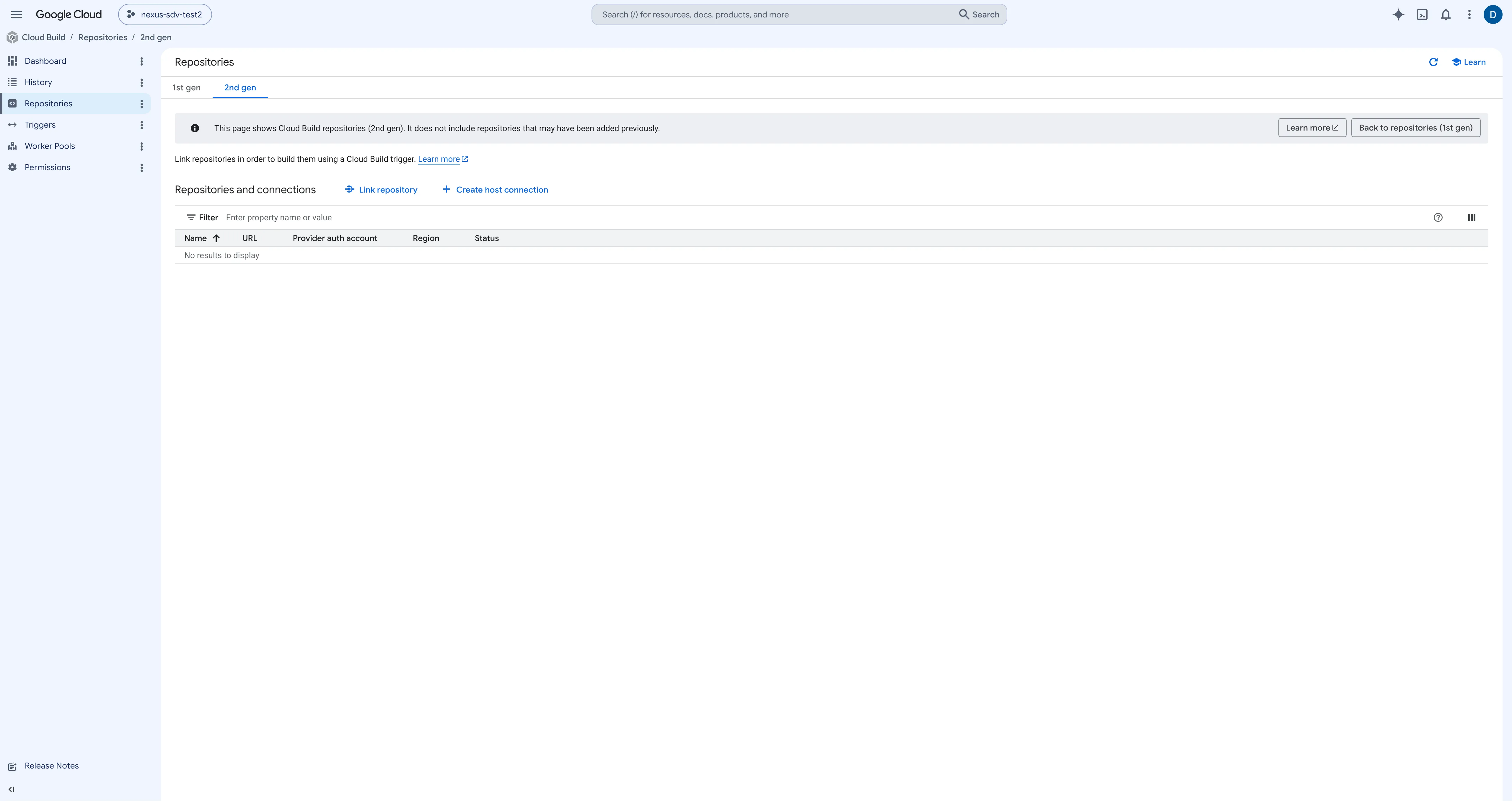
Open the Cloud Build dashboard and click Create host connection.
-
Follow the prompts: a name for the connection, your GitHub account, and the region you want to deploy Nexus in. The name takes only lowercase letters, digits and hyphens —
valtech-nexus-sdv, notValtech Nexus SDV.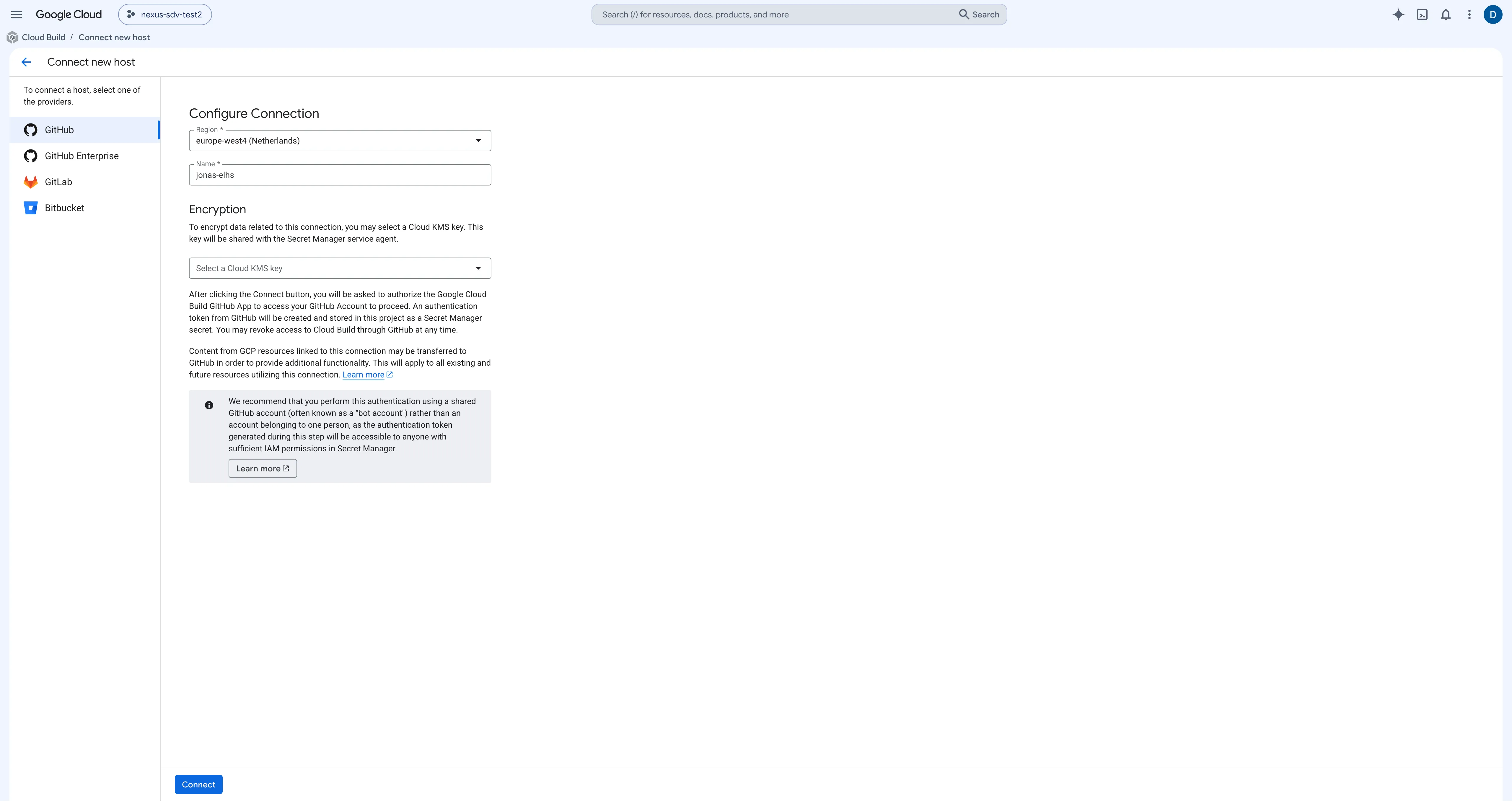
-
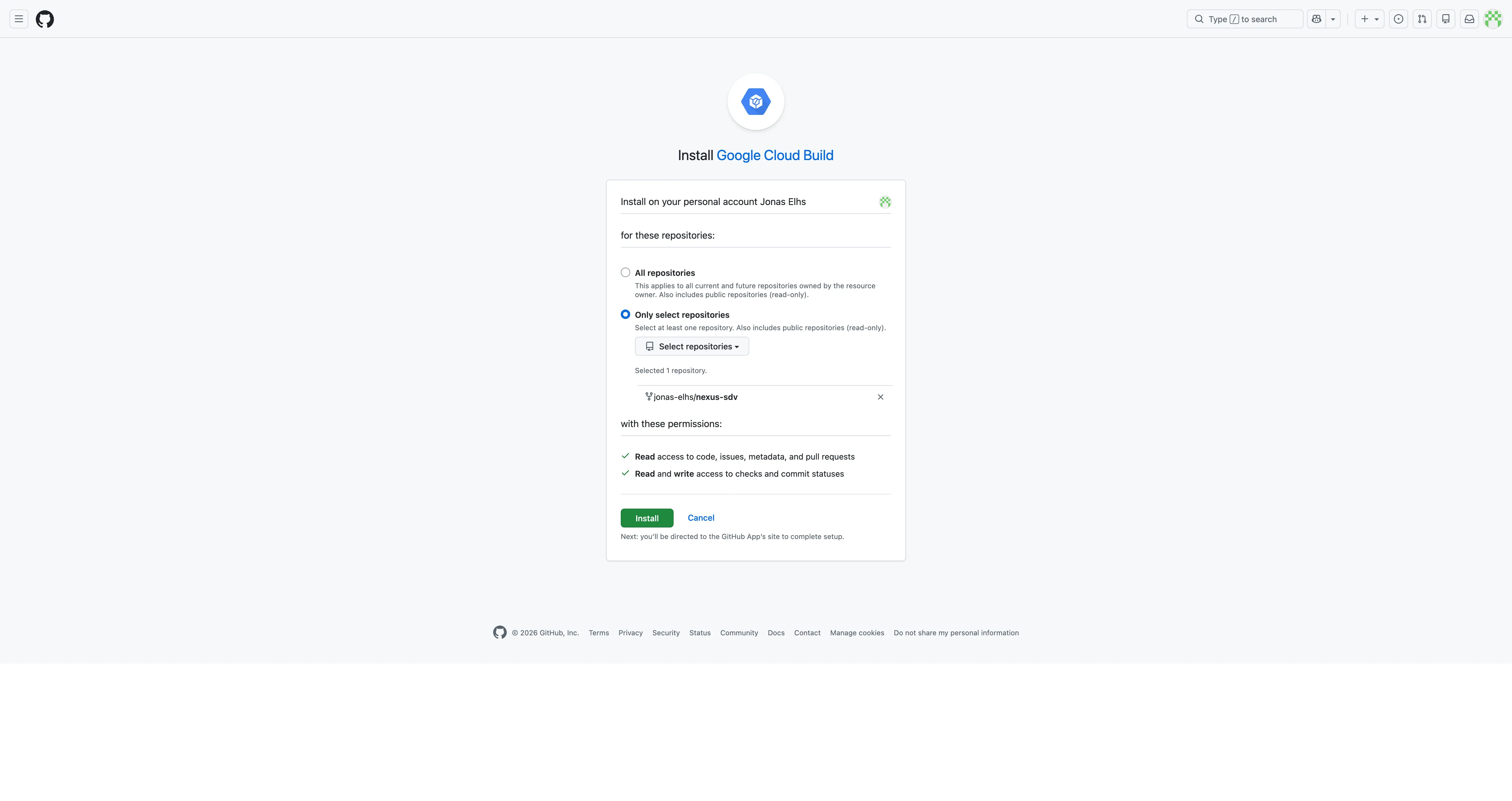
Install the Cloud Build GitHub app and grant it access to your Nexus fork only.
Linking the repository
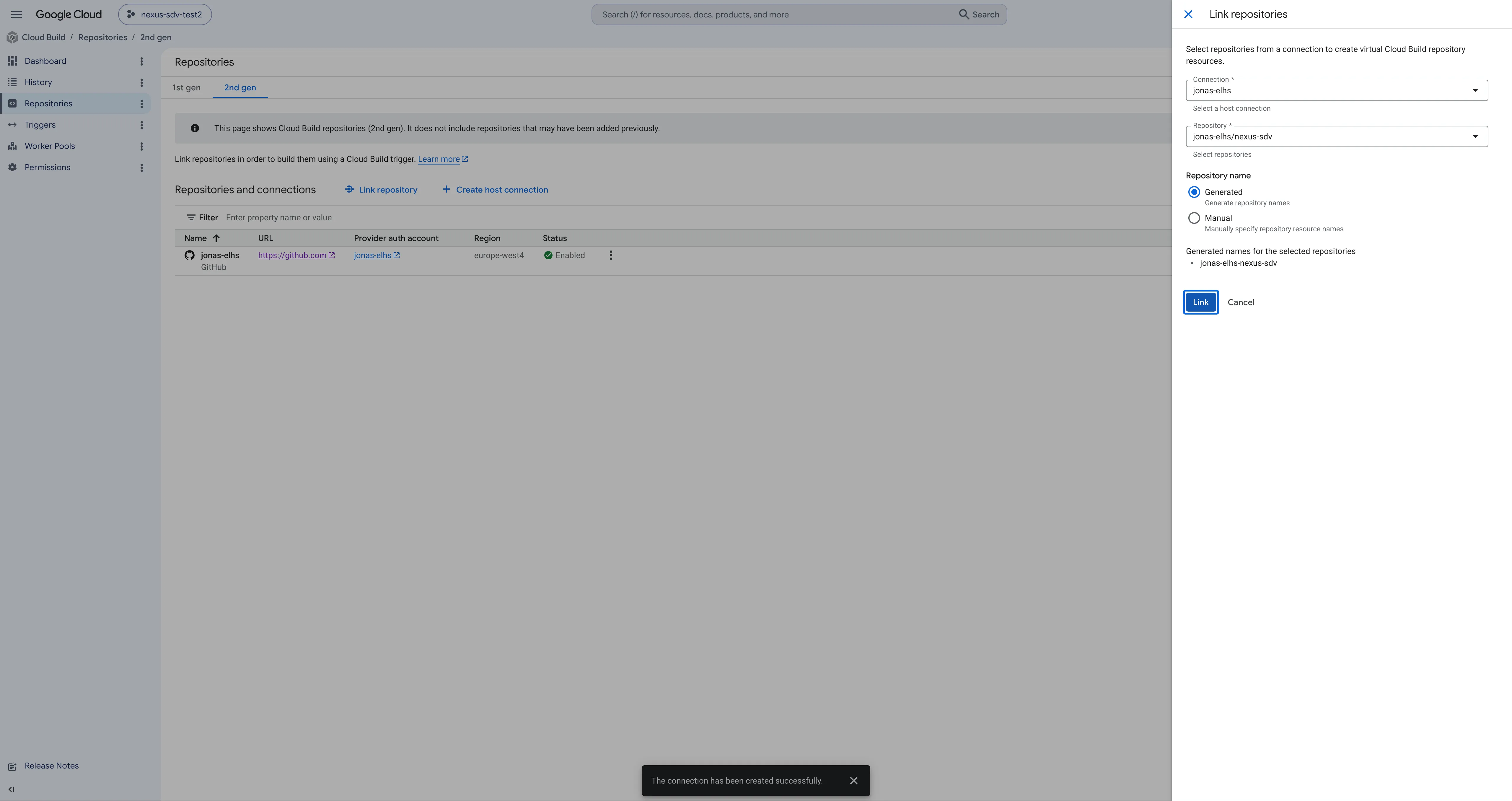
Section titled “Linking the repository”- Open the Cloud Build dashboard and click Link repository.
- Select the connection you just created and your Nexus fork.
A minimal configuration
Section titled “A minimal configuration”The setup script reads a .bootstrap_env. To create the triggers, three values
are enough:
GCP_PROJECT_ID="<your-gcp-project-id>"GCP_REGION="europe-west4"GITHUB_REPO="<owner>/<your-nexus-fork>"GCP_PROJECT_ID falls back to your gcloud configuration and GITHUB_REPO to
your git remote, so on a well-configured checkout the file may even be empty —
but writing them down keeps the setup reproducible for the next person.
Creating the triggers
Section titled “Creating the triggers”With the configuration file in place, run from the root of your fork:
./iac/bootstrapping/tools/setup-cloudbuild-triggers.shThe script reads iac/bootstrapping/.bootstrap_env — or the file you pass with
--env-file PATH. If none exists it starts the interactive
create-bootstrap-env.sh and uses the result.
From that file it needs GCP_PROJECT_ID and GITHUB_REPO. Both have a
fallback: the project from your gcloud configuration, and the repository
derived from git remote origin. If neither is available the script stops.
It then uploads your configuration to gs://<PROJECT_ID>-bootstrap-envs/.bootstrap_env
and creates four manual triggers:
| Trigger | Purpose |
|---|---|
bootstrap-platform | builds a complete platform |
teardown-platform | removes it again |
run-sample-clients | sends real telemetry end to end |
test-environments | bootstraps and tears down several environments in sequence |
A fifth trigger, platform-health-check, is created by Terraform during the
bootstrap. A schedule that runs it three times a day comes with it only on this,
the trigger path — the schedule invokes the trigger, so an install via
gcloud builds submit gets the one-off check at the end of its bootstrap and
nothing recurring.
When the script succeeds it prints:
[OK] ==================================================================[OK] All Cloud Build triggers are ready![OK] ==================================================================The .bootstrap_env file
Section titled “The .bootstrap_env file”The three lines above create the triggers. A platform needs the complete file — this is it. Every run reads it from a bucket in your project rather than from your repository:
gs://<PROJECT_ID>-bootstrap-envs/.bootstrap_envA trigger points at one file through the substitution
_BOOTSTRAP_ENV_GCS_PATH, so several environments can live side by side as
several files in the same bucket.
The keys
Section titled “The keys”| Key | Meaning |
|---|---|
GCP_PROJECT_ID | the project everything is created in |
GCP_REGION | region for GKE, Cloud SQL, BigTable and the CA pools |
DEPLOY_MODE | cloudbuild for this path |
GITHUB_REPO | your fork as owner/name; the trigger setup needs it and falls back to your git remote |
ENV | short name of the environment; it prefixes the cluster, the VPC and the database |
PKI_STRATEGY | remote or local — see below |
BASE_DOMAIN | the domain the services are published under (remote PKI) |
EXISTING_DNS_ZONE | name of an existing Cloud DNS zone for that domain |
KEYCLOAK_HOSTNAME | host part for Keycloak, default keycloak |
NATS_HOSTNAME | host part for NATS, default nats |
REGISTRATION_HOSTNAME | host part for the registration server |
FLEETVIEW_HOSTNAME | host part for FleetView |
EXISTING_SERVER_CA, EXISTING_SERVER_CA_POOL | reuse an existing server CA; empty means create a new one |
EXISTING_FACTORY_CA, EXISTING_FACTORY_CA_POOL | the same for the factory CA |
EXISTING_REG_CA, EXISTING_REG_CA_POOL | the same for the registration CA |
ARCH | arm64 or amd64 — the node architecture of the cluster |
OPERATIONAL_CERT_VALIDITY | how long a vehicle’s operational certificate is valid, as 90d, 12h, 5m; optional, default 90d |
FACTORY_HELPER_CERT_VALIDITY_DAYS | how long an issued factory certificate is valid, in days; optional, default 730 |
DEPLOYMENT_SUFFIX | leave empty; the bootstrap generates one and writes it back |
NEXT_PUBLIC_GOOGLE_MAPS_API_KEY | optional; leave empty |
NEXT_PUBLIC_GOOGLE_MAPS_MAP_ID | optional, belongs to the key above |
Empty EXISTING_* values mean create new, exactly as leaving a prompt blank
does in the interactive script.
Local or remote PKI
Section titled “Local or remote PKI”Certificates come from Google Certificate Authority Service and the services
are published under your domain, so BASE_DOMAIN and EXISTING_DNS_ZONE are
required. Keycloak then answers under two names: keycloak-ui.<domain> on port
443 for browsers, keycloak.<domain> on port 8443 for vehicles.
The platform generates its own certificate authorities and addresses its services
by IP address, so BASE_DOMAIN and EXISTING_DNS_ZONE stay empty. The Factory
Helper is not deployed on this path.
Which one to choose, and what each costs you, is laid out under Platform Deployment.
Architecture and region
Section titled “Architecture and region”ARCH decides whether the cluster runs on Arm or x86 nodes. Both are supported;
availability differs between regions, so if a bootstrap fails while creating the
cluster with a message about missing resources, try the other architecture or
another region.
Running a bootstrap
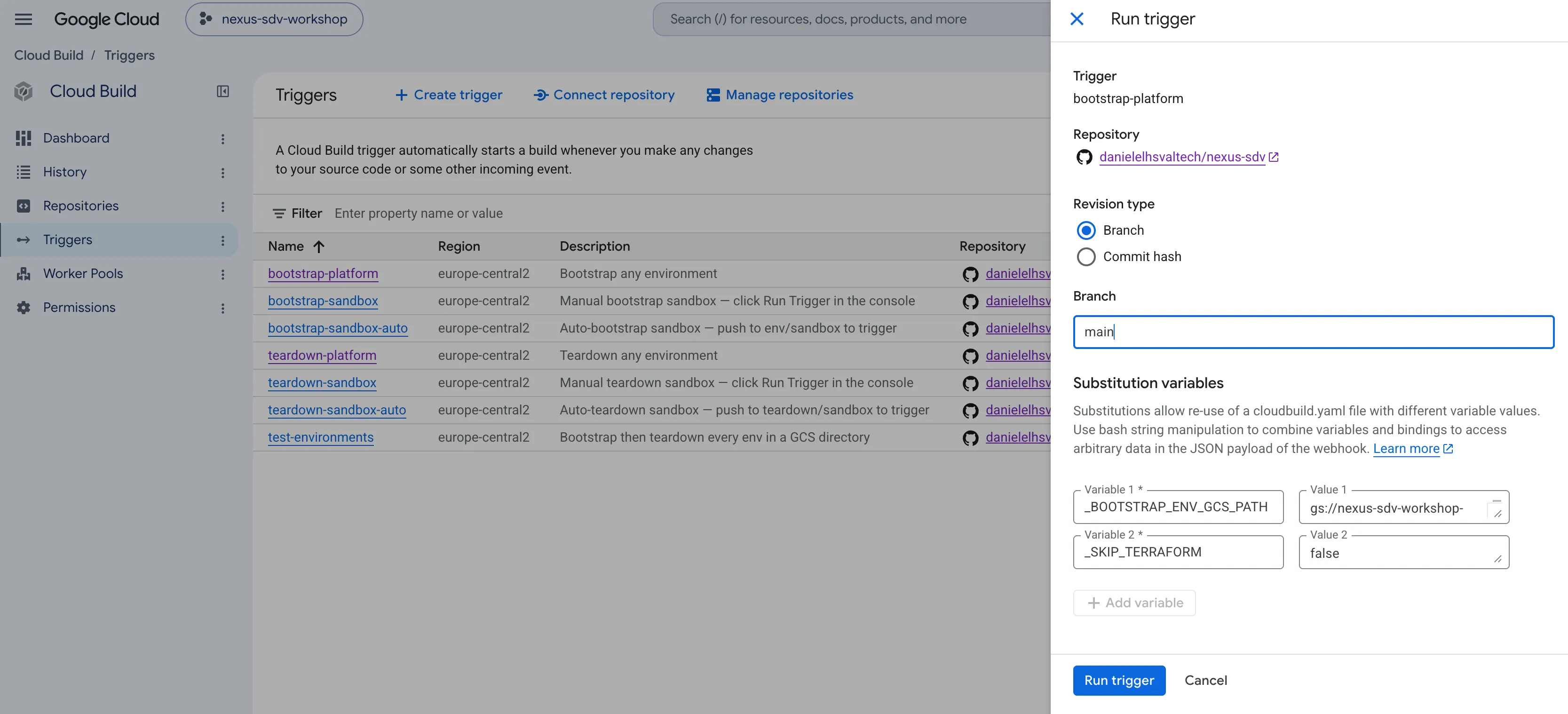
Section titled “Running a bootstrap”Open Cloud Build → Triggers in your project, find bootstrap-platform and
click Run. Nothing else is needed — no local tools, no checkout. This is the
path to use when a colleague should be able to deploy without setting anything
up.
gcloud builds triggers run bootstrap-platform \ --region=<REGION> --project=<PROJECT_ID>Useful from a pipeline, or when you want to start several environments in a row without clicking.
The run takes roughly 45 to 60 minutes and goes through three stages:
-
Infrastructure Terraform creates the network, the GKE cluster, Cloud SQL, BigTable, the CA pools and the service accounts, and stores the platform’s secrets in Secret Manager.
-
Services Cloud Build deploys Keycloak, NATS, the registration server, the Data API, the connector, the Vehicle Registry, FleetView and — with remote PKI — the Factory Helper. Each service is built and pushed from your fork.
-
Verification The health check runs against the finished platform and, on this path, sends real telemetry end to end.
Follow the run in the Cloud Build history of your project. The child builds — one per service — appear there next to the parent run.
What the health check tells you
Section titled “What the health check tells you”The last stage checks the enabled APIs, the infrastructure, certificate expiry, the endpoints of Keycloak, NATS and the registration server, and the state of each base service. It ends with a summary:
ENVIRONMENT PASS WARN FAILmy-environment 41 0 0A failure fails the build, so a green bootstrap means a platform that answered for itself. The number of checks depends on the platform — a local-PKI install runs fewer, because the DNS and certificate-authority checks do not apply — so read the WARN and FAIL columns rather than the total. The same counts are written to a Cloud Monitoring dashboard named Platform health, and where a trigger exists the scheduled run repeats the check three times a day. Without one there is no scheduled run — see above.
Tearing down
Section titled “Tearing down”Like the bootstrap, the teardown is a trigger: click Run on
teardown-platform under Cloud Build → Triggers, or start it from the
command line.
gcloud builds triggers run teardown-platform \ --region=<REGION> --project=<PROJECT_ID>The teardown removes everything the bootstrap created and clears the environment’s identity from Secret Manager, so the next platform in the same project starts clean. Two substitutions decide what survives:
| Substitution | Default | Effect |
|---|---|---|
_PRESERVE_CAS | Y | keeps the CA pools — useful when the next environment should reuse the same vehicle trust chain |
_PRESERVE_DNS | Y | keeps the Cloud DNS zone, so the domain delegation does not have to be set up again |
Both preserve by default, because another environment in the same project may
still be using them. A zone you named in EXISTING_DNS_ZONE is never deleted in
any case — the teardown only removes a zone its own bootstrap created.
Several environments in sequence
Section titled “Several environments in sequence”test-environments processes every file in the bucket, one after another:
bootstrap, an observation window, teardown, then the next. One file per
environment, and the run reports at the end which ones failed. This is how the
platform is verified across the four combinations of PKI strategy and
architecture.
It starts like the other two — Run on test-environments in the Console, or
from the command line.
gcloud builds triggers run test-environments \ --region=<REGION> --project=<PROJECT_ID>